Poképelago Twitch chat guessing
What chat guessing is
Chat guessing lets your Twitch viewers play along. While you stream Poképelago, anyone in your chat can type !guess followed by a Pokémon name, for example !guess pikachu. A correct guess counts for your game exactly as if you had typed it yourself, so it catches the Pokémon and sends the check to your Archipelago room.
Poképelago keeps a leaderboard of which viewers caught the most Pokémon, and each caught Pokémon remembers who guessed it.
Everything runs inside the Poképelago page in your browser. There is no bot to install and nothing to add to your Twitch channel. Chat guessing only works while that Poképelago tab is open.
This guide assumes you already have the client running. If not, start with the Poképelago setup guide, which covers sprites and connecting to a room.
Turn on the Twitch integration
- Open Poképelago in the browser you stream from.
- Select the gear-shaped Settings button at the top right.
- Stay on the Interface tab and scroll to Integrations at the bottom.
- Turn on Enable Twitch Integration. A new Twitch tab appears at the top of Settings.
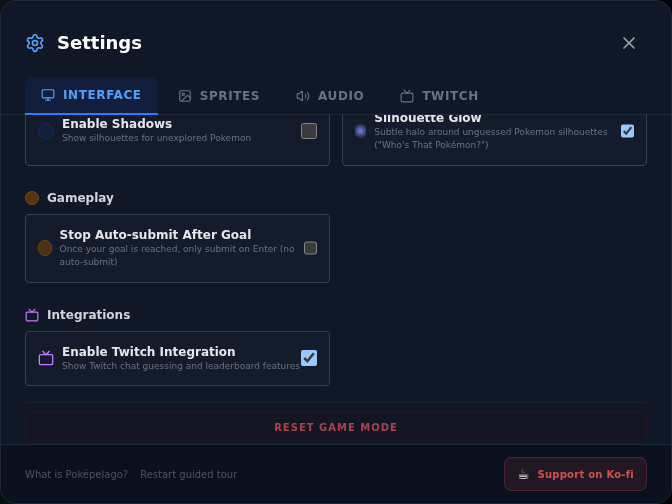
Enable Twitch Integration is the switch that unlocks everything else on this page.
Set up chat guessing
- In Settings, open the Twitch tab.
- Turn on Enable Chat Guessing.
- Type your Twitch channel name into Channel Name. This is the channel your viewers chat in, usually your Twitch username.
That is all chat guessing needs. Poképelago now reads your chat and picks up every !guess message. You do not have to sign in for this part, because reading a public chat needs no account.
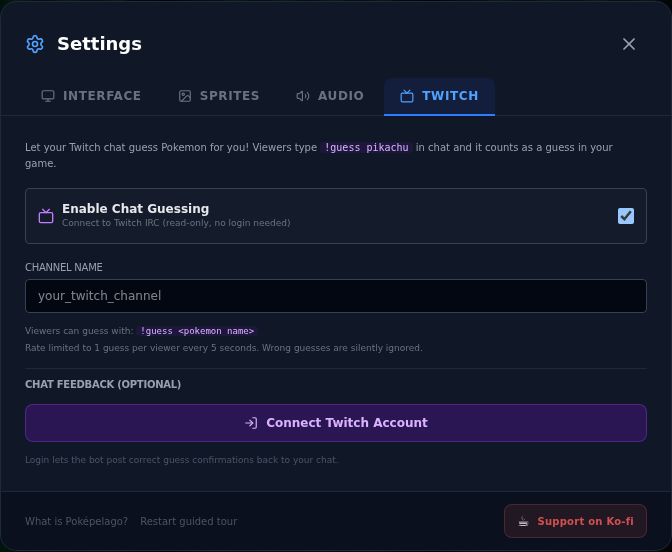
The Twitch tab before signing in. Fill in your own channel name. Signing in is optional.
A few rules keep chat fair:
- Each viewer can guess once every 5 seconds. Extra guesses in between are ignored.
- Wrong guesses and Pokémon you already caught are ignored quietly, so chat is not flooded with errors.
- A guess still has to be legal for your seed. If a Pokémon is locked behind a Type Key, Region Pass, or another gate item, a chat guess for it does not count yet.
Sign in with Twitch (optional)
Signing in lets Poképelago post a short confirmation to your chat when a viewer guesses right, for example "✓ Pikachu guessed by @viewer!". Without it, guesses still work, they just are not announced in chat.
- In the Twitch tab, select Connect Twitch Account.
- Twitch opens and asks you to authorize Poképelago. Sign in with the account you stream on, the one that owns your channel, and approve.
- Twitch sends you back to Poképelago. The Twitch tab now shows your account name.
- Leave Post correct guesses to chat on. It is on by default, and you can switch it off here any time.
Do this before you go live, because signing in takes you away from the Poképelago page for a moment. Confirmations are spaced at least 2 seconds apart so your chat is not spammed.
How long the sign-in lasts
A Twitch sign-in lasts up to about four hours. Poképelago checks it again every hour and whenever you come back to the tab. When it has run out, the Twitch tab and the Twitch sidebar both show Twitch sign-in expired, reconnect.
Chat guessing keeps working while the sign-in is expired. Only the confirmations in chat stop. To bring them back, select Reconnect Twitch Account and approve on Twitch again. On a long stream, expect to do this once or twice.
To sign out on purpose, select the sign-out icon next to your account name in the Twitch tab.
Which language chat can guess in
Chat guesses use the same guessing language as you. It is the language picker next to the guess bar at the top of the client, and changing it changes the language for your chat as well.
- With the default Global, a Pokémon counts when its name is typed in any language Poképelago supports.
- With a specific language, such as Deutsch or Français, only names in that language count, plus the plain English name, like
pikachu, which is always accepted. - With English, only English names count.
Capital letters, accents, spaces, and punctuation do not matter, so !guess mr mime works for Mr. Mime. If your community mixes languages, keep the picker on Global.
Test it before you go live
- Connect to your room, or select Play Standalone to practise.
- Check the Twitch tab in Settings. It shows an Active badge once chat guessing is on and a channel name is filled in.
- Open your own Twitch chat and type
!guesswith a Pokémon you can catch right now, for example!guess bulbasaurin a Kanto game. - The Pokémon should be caught on your grid, with a message saying who guessed it. If you signed in, a confirmation also appears in your chat.
Watch the leaderboard
Once the integration is on, the sidebar beside your Pokémon grid gets a Twitch tab next to Tracker and Settings. It shows the top guessers and a feed of recent guesses. Your own keyboard catches appear in the feed as "You" but do not count toward the leaderboard.
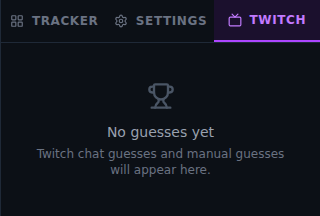
Before the first guess, the Twitch tab shows No guesses yet.
The leaderboard and the credits are stored in your browser for each Archipelago slot. They come back when you reconnect to the same slot in the same browser.
Troubleshooting
The Twitch tab is missing from Settings
Turn on Enable Twitch Integration under Interface → Integrations first. The Twitch tab in Settings and in the sidebar only appear after that.
Chat guesses are not doing anything
Check that Enable Chat Guessing is on, that the channel name is spelled correctly, and that viewers type !guess followed by a space and the name. Keep the Poképelago tab open. Then check the guessing language: with a specific language selected, names in other languages are ignored. Finally, the Pokémon may still be locked in your seed. Select it on the grid to see which gate is closed.
The bot is not posting in chat
Posting needs the Twitch sign-in. Open Settings → Twitch and make sure your account is shown and Post correct guesses to chat is on. If the tab shows Twitch sign-in expired, reconnect, select Reconnect Twitch Account.
A viewer's second guess did not count
Each viewer can guess once every 5 seconds. Ask them to wait a moment and try again.
Where to get help
For everything else about setting up the game, see the Poképelago setup guide. Report reproducible problems in the Poképelago issue tracker.